
Elegant
Text, fonts and rich text
Display single-line or wrapped text, configure fonts, elide or shrink overflowing lines, and render styled text, HTML, Markdown and links with Text and FontLoader.
Use Text to display plain strings, styled tags, rich HTML or Markdown, and use FontLoader when you need to load a custom font file by URL or path.
Sizing, wrapping, line limits and elide
A Text item with no width set is as wide as its text (trailing spaces count towards the width), and updates its size whenever text changes. Once completion finishes, contentWidth, contentHeight, lineCount and truncated report how the text is laid out. Changing color, or changing alignment within a fixed width, does not measure the text again.
To break long text into lines, set both a width and a wrap (Text.NoWrap, Text.WordWrap, Text.WrapAnywhere, Text.Wrap):
Without a width, nothing wraps; without a wrap, the text stays on one line and overflows the item.
WordWrap breaks between words so every line fits the width, though a single word wider than the item still overflows. WrapAnywhere breaks inside any word, and Wrap breaks inside a word only when there is no other break point.
Each wrapped line adds one line height to the item's height, while implicitWidth stays that of the unwrapped text. Explicit line breaks (\n) always start a new line even without a wrap mode, empty lines count, and contentWidth matches the widest line.
To cut text that does not fit:
Set maximumLineCount to drop lines past the limit and set truncated: true. The item's height is that of the kept lines. Explicit line breaks count towards the limit, and a limit that the text does not reach changes nothing.
Set elide (Text.ElideRight, Text.ElideLeft, Text.ElideMiddle, Text.ElideNone) along with a width to replace overflowing text with … so the result is no wider than the item. If not even … fits, nothing is shown and truncated becomes true.
Combine wrap, maximumLineCount and elide: Text.ElideRight to end the last allowed line with …. Lines that do not fit the item's height are dropped while implicitHeight remains that of all the lines; without an elide mode, a short item overflows instead of being cut.
Main.qml
QML
Copy
import Ljos.Ui
import Ljos.Layout

Column {
    width: 200
    spacing: 8

    Text {
        color: palette.windowText
        width: 120
        text: "Hello world, this is a long line of text"
        wrap: Text.WordWrap
    }

    Text {
        color: palette.windowText
        width: 120
        height: 30
        text: "Hello world, this is a long line of text that wraps"
        wrap: Text.WordWrap
        maximumLineCount: 2
        elide: Text.ElideRight
    }

    Text {
        color: palette.windowText
        width: 120
        text: "A single long word that does not break here"
        elide: Text.ElideMiddle
    }
}
Edit
Source
What this example draws
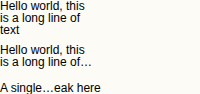
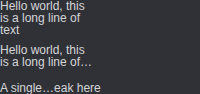
The first Text wraps onto multiple lines; the second keeps two lines and ends the second with …; the third stays on one line and cuts the middle with ….
Shrinking text to fit
Instead of eliding, set fontSizeMode (Text.FixedSize by default, Text.HorizontalFit, Text.VerticalFit, Text.Fit) to draw the text at the largest size—up to the font's own size—that fits inside the item's width (on one line), height, or both. Text that already fits keeps its font size, and fitted text never shrinks below minimumPixelSize (or minimumPointSize when the font is sized in points; both default to 12).
Main.qml
QML
Copy
import Ljos.Ui

Item {
    width: 200; height: 80

    Text {
        color: palette.windowText
        width: 200; height: 40
        text: "Shrinks to fit the width"
        font.size: 40
        fontSizeMode: Text.HorizontalFit
        minimumPixelSize: 12
    }

    Text {
        color: palette.windowText
        width: 200; height: 40
        y: 40
        text: "<b>Rich</b> text keeps its size"
        format: Text.RichText
        font.size: 40
        fontSizeMode: Text.HorizontalFit
    }
}
Edit
Source
What this example draws
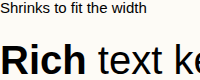
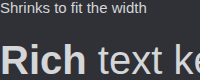
Watch the difference between text formats when fitting: StyledText shrinks just like plain text, whereas Text.RichText ignores fontSizeMode and keeps its 40-pixel size.
Fonts, line height, alignment and padding
When you do not set a font, Text uses the application font: family Sans Serif, size: 12 and weight: 400 (Font.Normal). You can configure font.family, font.size (in logical pixels), font.weight (Font.Thin, ExtraLight, Light, Normal, Medium, DemiBold, Bold, ExtraBold, Black), font.italic, font.underline, font.strikeout, font.letterSpacing, font.wordSpacing, font.capitalization and font.hintingPreference, as well as style (Text.Normal, Outline, Raised, Sunken), styleColor and renderType (Text.QtRendering, NativeRendering, CurveRendering).
A size in points is written font.size: Screen.points(n): Screen.points gives the pixels for n points on the item's screen, at the screen's logical dots per inch over 72, so 12 points are 16 pixels on a screen of 96 to the inch. font.size is a whole number of pixels, so a size that falls between two is rounded.
Bold text (font.weight: Font.Bold, 700) and positive letterSpacing or wordSpacing widen the text, whereas underline and strikeout do not change its size.
If a font family is not installed on the machine, the system's font matching substitutes an existing family and measures with that face. Generic family names such as serif or monospace resolve to the face the system names for them.
FontLoader loads a font file from source, reporting status as FontLoader.Null (0), Ready (1), Loading (2) or Error (3). Once ready, name holds the family name that Text can reference. A missing or invalid font file enters Error and logs Cannot load font.
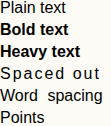
Main.qml
QML
Copy
import Ljos.Ui
import Ljos.Layout

Column {
    spacing: 6

    Text {
        color: palette.windowText
        text: "Plain text"
        font.size: 16
    }
    Text {
        color: palette.windowText
        text: "Bold text"
        font.size: 16
        font.weight: Font.Bold
    }
    Text {
        color: palette.windowText
        text: "Heavy text"
        font.size: 16
        font.weight: Font.Black
    }
    Text {
        color: palette.windowText
        text: "Spaced out"
        font.size: 16
        font.letterSpacing: 2
    }
    Text {
        color: palette.windowText
        text: "Word spacing"
        font.size: 16
        font.wordSpacing: 5
    }
    Text {
        color: palette.windowText
        text: "Points"
        font.size: Screen.points(12)
    }
}
Edit
Source
What this example draws
To adjust vertical rhythm and placement:
lineHeight with lineHeightMode: Text.ProportionalHeight multiplies every line's height, or sets each line to an exact pixel height with Text.FixedHeight (an empty Text with a fixed line height still has one line of that height, and the last line is never shorter than its font).
padding (leftPadding, topPadding, rightPadding, bottomPadding) surrounds the text; setting a side padding overrides padding on that side.
align (Text.AlignLeft, AlignRight, AlignHCenter, AlignJustify) defaults to the natural direction of the first letter with a direction ( recoverable via effectiveHorizontalAlignment), and keeps any explicit alignment you set. verticalAlignment (Text.AlignTop, AlignVCenter, AlignBottom) defaults to AlignTop.
Text formats and links
format selects how text is parsed:
Text.AutoText (2, the default): inspects the first line only. If the first line starts with a known tag, the text is read as StyledText; otherwise (including a bare <, an unknown tag or Markdown syntax) it is read as PlainText.
Text.PlainText (0): displays all characters and tags literally.
Text.StyledText (4): supports a small tag set—bold, italic, headings, font sizes, line breaks, paragraphs and list items. Unknown tags are stripped while keeping their text content, and an unclosed tag styles the rest of the text.
Text.RichText (1): lays out an HTML subset as blocks with margins (paragraphs, headings, lists, quotes, tables and horizontal rules). Scripts and style sheets are ignored, unknown elements are dropped while keeping their content, and an unclosed paragraph ends where the next starts. Rich text always reports lineCount: 1 regardless of how many visual lines it spans, and wrapped rich text is as wide as its item.
Text.MarkdownText (3): renders Markdown with bold, headings, lists, quotes, fenced code, tables and paragraphs separated by margins.
Links written in StyledText, RichText or MarkdownText are drawn in blue unless you set linkColor (in RichText, links take the palette's link colour rather than linkColor, though an inline style on the <a> tag itself overrides the palette).


Main.qml
QML
Copy
import Ljos.Ui

Text {
    id: links
    color: palette.windowText
    width: 240
    format: Text.StyledText
    text: "Read the <a href=\"docs\">guide</a> or the <a href=\"api\">reference</a>."
    // A link is underlined, so it needs no colour of its own to be seen;
    // the palette's light-scheme link blue is under 4.5:1 on a white
    // window, and the window's text reaches it in either scheme.
    linkColor: palette.windowText
    wrap: Text.WordWrap

    onLinkActivated: link => console.log("pressed: " + link)
    onLinkHovered: link => console.log("hover: " + link)
}
Edit
Source
What this example draws
Pressing and releasing on a link emits linkActivated(link) with the address as written; dragging off the link before release does not activate it, and pressing beside a link passes through to whatever lies beneath. Moving the pointer over a link updates hoveredLink and emits linkHovered(link) (emitting an empty string when the pointer leaves), and linkAt(x, y) returns the link address at a point or "". When a Text is in the Tab order, pressing Tab visits each link in reading order and Space or Return activates the focused link.
Limits and edge cases
Links in RichText take the palette's colour instead of linkColor unless styled on the link element itself.
A MarkdownText document does not parse embedded HTML; HTML tags inside Markdown are shown as literal text.
The margin between blocks in MarkdownText is always 7 pixels, however many times text is set.
An inline image in RichText that fits within its line leaves the line height unchanged, and a relative baseUrl resolves beside the QML file.
See also
Text, fonts and rich text
Display single-line or wrapped text, configure fonts, elide or shrink overflowing lines, and render styled text, HTML, Markdown and links with Text and FontLoader.
Use Text to display plain strings, styled tags, rich HTML or Markdown, and use FontLoader when you need to load a custom font file by URL or path.
Sizing, wrapping, line limits and elide
A Text item with no width set is as wide as its text (trailing spaces count towards the width), and updates its size whenever text changes. Once completion finishes, contentWidth, contentHeight, lineCount and truncated report how the text is laid out. Changing color, or changing alignment within a fixed width, does not measure the text again.
To break long text into lines, set both a width and a wrap (Text.NoWrap, Text.WordWrap, Text.WrapAnywhere, Text.Wrap):
Without a width, nothing wraps; without a wrap, the text stays on one line and overflows the item.
WordWrap breaks between words so every line fits the width, though a single word wider than the item still overflows. WrapAnywhere breaks inside any word, and Wrap breaks inside a word only when there is no other break point.
Each wrapped line adds one line height to the item's height, while implicitWidth stays that of the unwrapped text. Explicit line breaks (\n) always start a new line even without a wrap mode, empty lines count, and contentWidth matches the widest line.
To cut text that does not fit:
Set maximumLineCount to drop lines past the limit and set truncated: true. The item's height is that of the kept lines. Explicit line breaks count towards the limit, and a limit that the text does not reach changes nothing.
Set elide (Text.ElideRight, Text.ElideLeft, Text.ElideMiddle, Text.ElideNone) along with a width to replace overflowing text with … so the result is no wider than the item. If not even … fits, nothing is shown and truncated becomes true.
Combine wrap, maximumLineCount and elide: Text.ElideRight to end the last allowed line with …. Lines that do not fit the item's height are dropped while implicitHeight remains that of all the lines; without an elide mode, a short item overflows instead of being cut.
Main.qml
QML
Copy
What this example draws
Edit
Source
import Ljos.Ui
import Ljos.Layout

Column {
    width: 200
    spacing: 8

    Text {
        color: palette.windowText
        width: 120
        text: "Hello world, this is a long line of text"
        wrap: Text.WordWrap
    }

    Text {
        color: palette.windowText
        width: 120
        height: 30
        text: "Hello world, this is a long line of text that wraps"
        wrap: Text.WordWrap
        maximumLineCount: 2
        elide: Text.ElideRight
    }

    Text {
        color: palette.windowText
        width: 120
        text: "A single long word that does not break here"
        elide: Text.ElideMiddle
    }
}
Show all 31 lines
The first Text wraps onto multiple lines; the second keeps two lines and ends the second with …; the third stays on one line and cuts the middle with ….
Shrinking text to fit
Instead of eliding, set fontSizeMode (Text.FixedSize by default, Text.HorizontalFit, Text.VerticalFit, Text.Fit) to draw the text at the largest size—up to the font's own size—that fits inside the item's width (on one line), height, or both. Text that already fits keeps its font size, and fitted text never shrinks below minimumPixelSize (or minimumPointSize when the font is sized in points; both default to 12).
Main.qml
QML
Copy
What this example draws
Edit
Source
import Ljos.Ui

Item {
    width: 200; height: 80

    Text {
        color: palette.windowText
        width: 200; height: 40
        text: "Shrinks to fit the width"
        font.size: 40
        fontSizeMode: Text.HorizontalFit
        minimumPixelSize: 12
    }

    Text {
        color: palette.windowText
        width: 200; height: 40
        y: 40
        text: "<b>Rich</b> text keeps its size"
        format: Text.RichText
        font.size: 40
        fontSizeMode: Text.HorizontalFit
    }
}
Show all 24 lines
Watch the difference between text formats when fitting: StyledText shrinks just like plain text, whereas Text.RichText ignores fontSizeMode and keeps its 40-pixel size.
Fonts, line height, alignment and padding
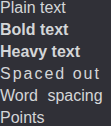
When you do not set a font, Text uses the application font: family Sans Serif, size: 12 and weight: 400 (Font.Normal). You can configure font.family, font.size (in logical pixels), font.weight (Font.Thin, ExtraLight, Light, Normal, Medium, DemiBold, Bold, ExtraBold, Black), font.italic, font.underline, font.strikeout, font.letterSpacing, font.wordSpacing, font.capitalization and font.hintingPreference, as well as style (Text.Normal, Outline, Raised, Sunken), styleColor and renderType (Text.QtRendering, NativeRendering, CurveRendering).
A size in points is written font.size: Screen.points(n): Screen.points gives the pixels for n points on the item's screen, at the screen's logical dots per inch over 72, so 12 points are 16 pixels on a screen of 96 to the inch. font.size is a whole number of pixels, so a size that falls between two is rounded.
Bold text (font.weight: Font.Bold, 700) and positive letterSpacing or wordSpacing widen the text, whereas underline and strikeout do not change its size.
If a font family is not installed on the machine, the system's font matching substitutes an existing family and measures with that face. Generic family names such as serif or monospace resolve to the face the system names for them.
FontLoader loads a font file from source, reporting status as FontLoader.Null (0), Ready (1), Loading (2) or Error (3). Once ready, name holds the family name that Text can reference. A missing or invalid font file enters Error and logs Cannot load font.
Main.qml
QML
Copy
What this example draws
Edit
Source
import Ljos.Ui
import Ljos.Layout

Column {
    spacing: 6

    Text {
        color: palette.windowText
        text: "Plain text"
        font.size: 16
    }
    Text {
        color: palette.windowText
        text: "Bold text"
        font.size: 16
        font.weight: Font.Bold
    }
    Text {
        color: palette.windowText
        text: "Heavy text"
        font.size: 16
        font.weight: Font.Black
    }
    Text {
        color: palette.windowText
        text: "Spaced out"
        font.size: 16
        font.letterSpacing: 2
    }
    Text {
        color: palette.windowText
        text: "Word spacing"
        font.size: 16
        font.wordSpacing: 5
    }
    Text {
        color: palette.windowText
        text: "Points"
        font.size: Screen.points(12)
    }
}
Show all 41 lines
To adjust vertical rhythm and placement:
lineHeight with lineHeightMode: Text.ProportionalHeight multiplies every line's height, or sets each line to an exact pixel height with Text.FixedHeight (an empty Text with a fixed line height still has one line of that height, and the last line is never shorter than its font).
padding (leftPadding, topPadding, rightPadding, bottomPadding) surrounds the text; setting a side padding overrides padding on that side.
align (Text.AlignLeft, AlignRight, AlignHCenter, AlignJustify) defaults to the natural direction of the first letter with a direction ( recoverable via effectiveHorizontalAlignment), and keeps any explicit alignment you set. verticalAlignment (Text.AlignTop, AlignVCenter, AlignBottom) defaults to AlignTop.
Text formats and links
format selects how text is parsed:
Text.AutoText (2, the default): inspects the first line only. If the first line starts with a known tag, the text is read as StyledText; otherwise (including a bare <, an unknown tag or Markdown syntax) it is read as PlainText.
Text.PlainText (0): displays all characters and tags literally.
Text.StyledText (4): supports a small tag set—bold, italic, headings, font sizes, line breaks, paragraphs and list items. Unknown tags are stripped while keeping their text content, and an unclosed tag styles the rest of the text.
Text.RichText (1): lays out an HTML subset as blocks with margins (paragraphs, headings, lists, quotes, tables and horizontal rules). Scripts and style sheets are ignored, unknown elements are dropped while keeping their content, and an unclosed paragraph ends where the next starts. Rich text always reports lineCount: 1 regardless of how many visual lines it spans, and wrapped rich text is as wide as its item.
Text.MarkdownText (3): renders Markdown with bold, headings, lists, quotes, fenced code, tables and paragraphs separated by margins.
Links written in StyledText, RichText or MarkdownText are drawn in blue unless you set linkColor (in RichText, links take the palette's link colour rather than linkColor, though an inline style on the <a> tag itself overrides the palette).
Main.qml
QML
Copy
What this example draws
Edit
Source
import Ljos.Ui

Text {
    id: links
    color: palette.windowText
    width: 240
    format: Text.StyledText
    text: "Read the <a href=\"docs\">guide</a> or the <a href=\"api\">reference</a>."
    // A link is underlined, so it needs no colour of its own to be seen;
    // the palette's light-scheme link blue is under 4.5:1 on a white
    // window, and the window's text reaches it in either scheme.
    linkColor: palette.windowText
    wrap: Text.WordWrap

    onLinkActivated: link => console.log("pressed: " + link)
    onLinkHovered: link => console.log("hover: " + link)
}
Show all 17 lines
Pressing and releasing on a link emits linkActivated(link) with the address as written; dragging off the link before release does not activate it, and pressing beside a link passes through to whatever lies beneath. Moving the pointer over a link updates hoveredLink and emits linkHovered(link) (emitting an empty string when the pointer leaves), and linkAt(x, y) returns the link address at a point or "". When a Text is in the Tab order, pressing Tab visits each link in reading order and Space or Return activates the focused link.
Limits and edge cases
Links in RichText take the palette's colour instead of linkColor unless styled on the link element itself.
A MarkdownText document does not parse embedded HTML; HTML tags inside Markdown are shown as literal text.
The margin between blocks in MarkdownText is always 7 pixels, however many times text is set.
An inline image in RichText that fits within its line leaves the line height unchanged, and a relative baseUrl resolves beside the QML file.
See also