


Windows
Manage top-level surfaces, visibility states, size limits,
headers, footers, and close events with Window and
ApplicationWindow.
Use
Window (Ljos.Ui) for a plain top-level window surface, or ApplicationWindow (Ljos.Controls) when you want a top-level window that provides a header, a footer, and automatic font and palette inheritance for controls inside it.A
Window starts hidden (visible: false, visibility: Window.Hidden 0), with size 0 × 0, an empty title, and a white (#ffffff) background color. Its visible and visibility properties stay synchronised across the Window.Visibility states:Window.Hidden (0)Window.AutomaticVisibilityWindow.Windowed (2)Window.Minimized (3)Window.Maximized (4)Window.FullScreen (5)You can change visibility by setting
visible or visibility, or by calling show(), hide(), showNormal(), showMaximized(), showFullScreen(), and showMinimized(). Showing a hidden window puts it in Windowed state, except that hiding a maximized window and showing it again restores its maximized state. Calling showNormal() returns a maximized, minimized, or full-screen window to its windowed size.minimumWidth, maximumWidth, minimumHeight, and maximumHeight clamp the window's dimensions: setting a minimum larger than the current size grows the window, and setting a maximum smaller than the current size shrinks it, while limits that already contain the current size leave it unchanged.Write this as
Main.qml and run ljos check on its directory: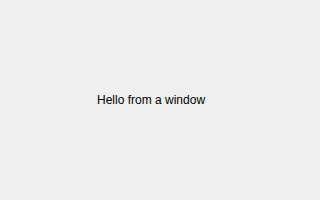
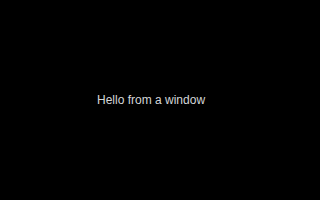
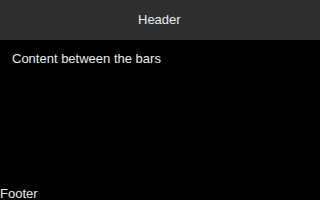
ApplicationWindow extends a top-level window with layout slots for a header at the top and a footer at the bottom, both stretched across the width of the window. Any child items you declare inside an ApplicationWindow become children of its contentItem, which fills the space between the bars. Hiding the footer (or header) gives its room back to the content.Every control inside an
ApplicationWindow inherits the window's font and palette, and the window background is filled with palette.window.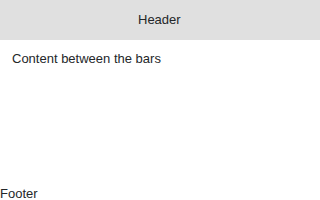
Calling
close() or clicking the window's close button emits closing(close) with a CloseEvent before hiding the window. If your handler sets close.accepted = false, the window stays open; a subsequent close request emits closing again. Closing a window that was never shown does not emit closing, and a closed window can be shown again later with show().

Keep in mind that closing a window only hides it—it does not exit the application. Call
App.quit() when you want the application to terminate.When an application has multiple windows, only the active window (
Qt.application.active, Qt.application.state) gives activeFocus to its focused item. Declaring a Window inside another Window makes the inner window transient for the outer one (transientParent): it is a separate top-level window and is not shown automatically when the outer window is shown, but while the transient window holds keyboard focus, the parent window remains active. A Dialog has no position of its own: centre it by setting anchors.centerIn: parent (inside an ApplicationWindow, the window's content item) or by giving it x and y. Open popups stay in the window where they were opened and move with their parent item.Because
winit cannot express window modality (modality) or transientParent natively, Ljós emulates both in the shell; only some flags are passed on to the platform (the window type bits such as Qt.Dialog, Qt.Popup, Qt.Tool, Qt.ToolTip and Qt.SplashScreen, Qt.WindowStaysOnTopHint, Qt.WindowStaysOnBottomHint and Qt.FramelessWindowHint), and on Wayland a window cannot position or activate itself.